# Welcome to Nextway

<figure><img src="/files/n2GRyK2xAoglB6btY9Bj" alt=""><figcaption><p>Last mile delivery system for MSMEs</p></figcaption></figure>

## Overview

Nextway. Last mile delivery system for MSMEs.

**What it means for a last mile delivery system tailored for MSMEs?**

* No unnecessary third-party logistics
* Support in-house fleet
* Digitization of orders, contacts, service vehicles and drivers data
* Order tracking and proof-of-delivery
* Easy adoption

## Quick links

{% content-ref url="/pages/F8icgEv0K2ydMqzU1yA8" %}
[What we do](/overview/what-we-do)
{% endcontent-ref %}

{% content-ref url="/pages/xFaJIiZPUGCWwykiijob" %}
[Our Features](/overview/our-features)
{% endcontent-ref %}

## Get Started

We've put together some helpful guides for you to get setup with our product quickly and easily.

{% content-ref url="/pages/AyTP1cvWEcOkuhUNXH51" %}
[Getting set up](/fundamentals/getting-set-up)
{% endcontent-ref %}

{% content-ref url="/pages/ZOrq1nIU48J39bqoJ0H7" %}
[System design](/fundamentals/system-design)
{% endcontent-ref %}

{% content-ref url="/pages/CTO83IvfTvbfjIjFCP2W" %}
[Creating a dispatch rule](/product-guides/creating-a-dispatch-rule)
{% endcontent-ref %}

## Check Out

While you are here, you can also check out Nextway Github repositories right here: <https://github.com/orgs/next-way/repositories> *(Feel free to contribute!)*


# What we do

## Background

Micro, small and medium enterprises (MSMEs) grew from **-4.30%** in 2019-2020 to **12.94%** in 2021 based on the number of establishments.

The number of employment from **-2.36%** in 2019-2020 to **1.50%** in the last year.

![MSME growth based on number of establishments](/files/nJoiiN2dXyVE9FX8rUYl)![MSME growth based on number of employment](/files/bN92yhLVyI54hYinorsg)

This growth presents challenges and opportunities to the last leg of moving products from businesses to customers, a.k.a. as the last mile delivery.

Third-party logistics (3PL) exist and businesses can simply tap into their services as we've observed for most online businesses.

## What is Nextway?

**Nextway** is a last mile delivery solution catered towards **micro, small and medium enterprises (MSMEs)**. Nextway does not aim to be one of the 3PLs. It's the same set of problems.

<figure><img src="/files/BuueWOrvtO0Fr6ftjbOH" alt=""><figcaption><p>Objectives of the Nextway project</p></figcaption></figure>

The demographic of Nextway is tailored towards MSMEs that has their own fleet or outsource their fleet to the community — imagine a mom-and-pop shop with a Kuya that has a motorcycle, or a neighbor that do deliveries using his own truck.

Some businesses do well managing their own delivery system.

But often they do not have a centralized, organized system for streamlining customer orders, assigning them to drivers, monitoring the deliveries, or didn't even have a grasp of how technology can help ease their operations.

What sets apart Nextway is the approach taken to solve these problems and to further improve the business processes of MSMEs.


# Our Features

## ERP Adoption using Odoo Community Edition

Sales orders, invoicing, fleet management, and inventory? Odoo CE got that.

* Contacts
* Orders
* Quotations
* Fleet

... are just some of the modules built-in to Odoo CE.

Nextway ERP is a collection of modules to further enhance the ERP adoption of MSMEs.

Currently, an [order dispatch module](https://github.com/next-way/order_dispatch) is made available. More modules are to be developed soon.

<figure><img src="/files/sQLqd8vpThdPD43YopgT" alt=""><figcaption><p>Order dispatch module</p></figcaption></figure>

## Nextway driver mobile application

Drivers get all the job order management using a mobile app.

<figure><img src="/files/x2tNUY0LM3zscd7pUjdr" alt=""><figcaption><p>Nextway driver mobile app</p></figcaption></figure>


# Roadmap

## What's next for Nextway?

**Cloud-edge continuum**

The project aims to further provide reliable ways to communicate with drivers whose journey may bring them to places with limited connectivity that is common in the far flung remote areas. Bringing the system closer to where the data is generated.

This way, even feature phones should be enough to bring customers and drivers onboard.


# Creating a dispatch rule

Dispatch rules determine which drivers are getting assigned to an order once they are ready for delivery. Multiple conditions can be set in one rule.\
\
One example is to assign orders to a driver based on the delivery location. Let's do just that!

## Step 1 - Navigate to dispatch rules setup

The dispatch rules setup page is enabled in both **Sales** and **Inventory**. Once you are on either pages, click on **"Configuration"**.

<figure><img src="/files/GSVcxZjdD5hVEwrtE9Cs" alt=""><figcaption></figcaption></figure>

Click **"Dispatch rules".**

<figure><img src="/files/CxXerx7RhMioXHTDRJ3Q" alt=""><figcaption></figcaption></figure>

## Step 2 - Creating a rule

Click **"Create"**. We are going to create a rule for assigning orders by matching delivery destination to the driver's city.

<figure><img src="/files/GjaVRDgRg177RYYrIy6O" alt=""><figcaption></figcaption></figure>

Type in the name **"Talisay Orders"** and in conditions click **"Add a line".**

<figure><img src="/files/9AIyAkC3w3oyIbJfinCG" alt=""><figcaption></figcaption></figure>

Check "**Order city from Talisay"** and click **"Select"**.

<figure><img src="/files/D63k2YfJKgLrK2ptOW95" alt=""><figcaption></figcaption></figure>

## Step 3 - Selecting a driver

Now, we are going to select the preferred drivers. For now, let's just select one.

On the **"Preferred Drivers"** click **"Add a line"**

<figure><img src="/files/FCQxHawiEHlHdl1CJir1" alt=""><figcaption></figcaption></figure>

From here, you will see a list of users. Let's click on **"Filters".**

<figure><img src="/files/HWqs9P3YrkasdIN0jxul" alt=""><figcaption></figcaption></figure>

At the bottom part, selec&#x74;**"Add Custom Filter"** and **"Has Vehicle" : "Is Yes"**. And click **"Apply"**.

<figure><img src="/files/c8vheThO0Nl8fausKFe3" alt=""><figcaption></figcaption></figure>

Select one.

<figure><img src="/files/62HYhgHBu2x5h3xgL0q5" alt=""><figcaption></figcaption></figure>

Then finally, click **"Create"** or **"Save manually"** button.

<figure><img src="/files/4hvQQx1AeIHniNvbayy8" alt=""><figcaption></figcaption></figure>

Now we have a dispatch rule for Talisay Orders to be matched with Delfin Nav for delivery.

## Further improvements

At present there are two conditions for this proof-of-concept — the delivery city, and the packaging size of the order. More conditions to be added soon!

The selection of preferred drivers is easy if there is only one matching driver. Currently, when there are multiple drivers preferred, a random selection is done. In the future, other features will be considered for the selection.


# Driver API access

## Granting driver access&#x20;

A driver can be granted access to the application by explicitly setting the group **"Manage dispatch API integration"** with the role **"API User / Driver: API Access as a driver".**

<figure><img src="/files/nOYthFM9BCTQpWtCj1jP" alt=""><figcaption></figcaption></figure>

"**Sales - User : All Documents"** is also selected here since operations to the order model is necessary for logging updates that the driver made in the app.

### For Developers

Only users with "**API User / Driver: API Access as a driver**" roles will be eligible for API access. Once the user is authenticated in the app, the API key for the user will be created for them.


# Your first order

{% embed url="<https://scribehow.com/embed/Creating_an_order_and_sending_quotation_to_the_customer__MhyYmJAeSYi8pugS3czFkw>" %}


# Your first delivery

This workflow starts at Odoo web as assigning drivers to the orders can be done either manually or based on the dispatch rules.

{% hint style="info" %}
To create a dispatch rule, see the [Creating a dispatch rule](/product-guides/creating-a-dispatch-rule) guide.
{% endhint %}

When left unassigned, drivers using Nextway Mobile App can see the job order as unassigned and they can accept the job order for themselves.\
\
The workflow ends with the job order assigned and completed using the Nextway Mobile App.&#x20;

## Driver assignment in Odoo

{% embed url="<https://scribehow.com/embed/Driver_assignment_on_Web__pV-glbCKQ0iare8CCh4kAg>" %}

## Self-assignment using Nextway Mobile App

From the app, tap "**Unassigned"** tab.

<figure><img src="/files/GNnYdl6jHNqm3pbX7Yo1" alt=""><figcaption></figcaption></figure>

Then, check all the details. Once everything checks out, tap **"Accept"**.

<figure><img src="/files/ZNRbH3FToNsnbmLYoraS" alt=""><figcaption></figcaption></figure>

<figure><img src="/files/VluHNyT3dd4ZtPKcIske" alt=""><figcaption></figcaption></figure>

After a few moment, the job should now be assigned.

<figure><img src="/files/c6DhmHjiQvOfCprcwufq" alt=""><figcaption></figcaption></figure>

After a while, the screen will change to the drop-off screen.

## Completing the order

### Drop off

Once the driver is at the customer's designated delivery address, the driver then taps on "**Drop off"** button to mark the order.

<figure><img src="/files/sKXP0ajYSWbCqMSqLndD" alt=""><figcaption></figcaption></figure>

Menu items are also available to the driver now as the job order is for drop off.

<figure><img src="/files/p6Cm9MfmCkGPXMOw5drW" alt=""><figcaption></figcaption></figure>

### Collect payment

Add a few notes. Collect the payment from the customer. And tap **"Collect"**.

<figure><img src="/files/9b7w8Y3yWtYm1HZh5jsf" alt=""><figcaption></figcaption></figure>

<figure><img src="/files/UqGrTJx6zHy5gupPBhrY" alt=""><figcaption></figcaption></figure>

<figure><img src="/files/nVmxje1cWO8sKI89Ut8p" alt=""><figcaption></figcaption></figure>

### Validating delivery in Odoo

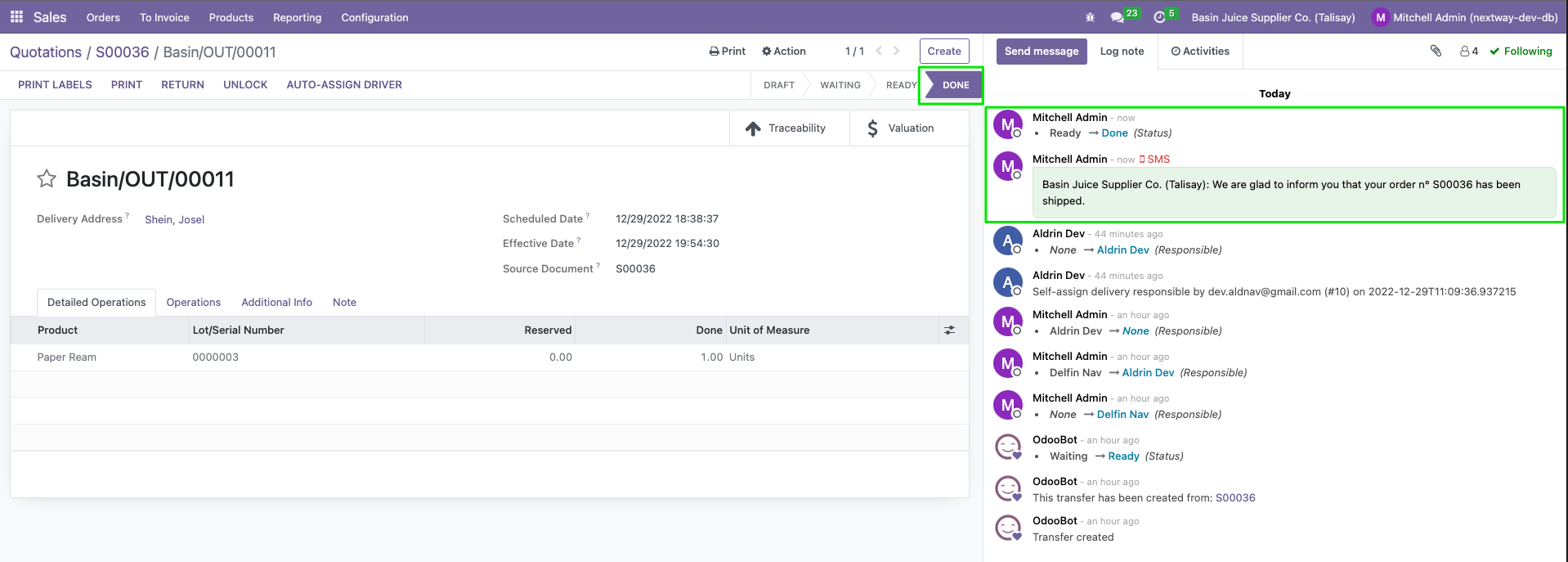
Checking the order in Odoo, the drop off and collection of payment actions by the driver in the Nextway Driver App also updates the log.

<figure><img src="/files/pPLbKwDdmYJcUDDBISO9" alt=""><figcaption></figcaption></figure>

Clicking on the "**Delivery"** button, set the quantities done in delivery and click **"Validate".**

<figure><img src="/files/II7F2K4spiifyWyyFaCm" alt=""><figcaption></figcaption></figure>

And finally the delivery is complete.

<figure><img src="/files/B4Ko9FhWrqF7Y2XcBr5Z" alt=""><figcaption></figcaption></figure>

## Conclusion

At this section, we have learned the following:

1. Assigning driver manually and automatically based on dispatch rules in Odoo
2. Self-assignment using the Driver Nextway App
3. Drop off and collection
4. Validating and completing the delivery in Odoo


# Getting set up

<details>

<summary>Step 1: Setting up the project files</summary>

Make a project with under a directory called `nextway`

Clone the repository <https://github.com/next-way/nextway-erp-api> for the FastAPI app

```
git clone https://github.com/next-way/nextway-erp-api.git
```

Go back up to `nextway` and make a directory `nextway-erp-web` this will contain our Odoo app.&#x20;

While at `nextway-erp-web` create a directory `addons` and this will contain Nextway's custom addons.

Change directory into addons and clone the repository <https://github.com/next-way/order_dispatch>

```
git clone https://github.com/next-way/order_dispatch
```

At the end, we get following directory structure

```
nextway
├── nextway-erp-api
└── nextway-erp-web
   └── addons
       └── order_dispatch
```

</details>

<details>

<summary>Step 2: Configuration</summary>

Here, we are going to focus on `nextway-erp-web` to get Odoo ready.

### Nextway ERP WEB

#### Odoo system configuration

Create the file `config/odoo.conf`

The following is how the config may look like.

<pre class="language-systemd" data-title="config/odoo.conf"><code class="lang-systemd"><strong>#-----------------------------------------------------------------------------
</strong># Filter listed database REGEXP 
#-----------------------------------------------------------------------------
db_name = nextwaydb
db_host = host.docker.internal
db_port = 5435
db_user = odoo
db_password = secretdbpass

#-----------------------------------------------------------------------------
# Specify the addons_path folders ordered by priority
# addons_path=/first/path/,/second/path/
#-----------------------------------------------------------------------------
addons_path = /usr/lib/python3/dist-packages/odoo/addons,/var/lib/odoo/.local/share/Odoo/addons/16.0,/mnt/extra-addons

#-----------------------------------------------------------------------------
# Comma-separated list of server-wide modules, default=web
#-----------------------------------------------------------------------------
server_wide_modules = web,sale_management,stock,fleet,contacts,hr,delivery,order_dispatch
</code></pre>

This sets up the database Odoo will use, the `addons_path` and the modules that will be installed and enabled by default.

📌 More on Odoo system configuration here: <https://www.odoo.com/documentation/16.0/administration/install/deploy.html>

#### Database configuration

The postgres image will be used for PostgreSQL. We will only be needing one file for now.

Create a `odoo_pg_pass` file and add the database password. This will be used as a `postgresql_password` secret in our compose file later.&#x20;

#### Dockerfile

Now we are going to create the Dockerfile.

{% code title="Dockerfile" %}

```docker
FROM odoo:16
ARG extra_addons_path=addons
USER root
RUN apt-get update && \
    apt-get install -y --no-install-recommends \
    python3-pip
COPY $extra_addons_path /mnt/extra-addons
USER odoo
COPY --chown=odoo:odoo config/odoo.conf /etc/odoo/odoo.conf
```

{% endcode %}

#### Docker compose

For simplicity, here is how a compose file would look like.

{% code title="docker-compose.yml" %}

```yaml
version: '3.1'
services:
  web:
    image: localhost:6000/nextway-odoo-web:latest
    platform: linux/amd64
    depends_on:
      - db
    ports:
      - "8069:8069"
    volumes:
      - odoo-web-data:/var/lib/odoo
      - ./config:/etc/odoo
      - ./addons:/mnt/extra-addons
    environment:
      - PASSWORD_FILE=/run/secrets/postgresql_password
    secrets:
      - postgresql_password
  db:
    image: postgres:13
    environment:
      - POSTGRES_DB=postgres
      - POSTGRES_PASSWORD_FILE=/run/secrets/postgresql_password
      - POSTGRES_USER=odoo
      - PGDATA=/var/lib/postgresql/data/pgdata
    volumes:
      - odoo-db-data:/var/lib/postgresql/data/pgdata
    secrets:
      - postgresql_password
    ports:
      - "5435:5432"
  api:
    image: localhost:6000/nextway-odoo-api:latest
    platform: linux/amd64
    environment:
      - DOCKER_DEFAULT_PLATFORM=linux/amd64
      - PASSWORD_FILE=/run/secrets/postgresql_password
    depends_on:
      - db
      - web
    ports:
      - "8082:8082"
    volumes:
      - ../nextway-erp-api/.env.shared:/usr/local/api/.env.shared
      - ./config:/etc/odoo
    secrets:
      - postgresql_password
volumes:
  odoo-web-data:
  odoo-db-data:

secrets:
  postgresql_password:
    file: odoo_pg_pass
```

{% endcode %}

Now our `nextway-erp-web` directory looks like the following.

```
nextway/nextway-erp-web
├── Dockerfile
├── odoo_pg_pass
├── addons
│   └── order_dispatch
└── docker-compose.yml
```

We are getting close! Now for the API.

### Nextway ERP API

There are a few environment variables available for setup. For simplicity, a file called `.env.sample` is created for you. Copy the file into a `.env.shared` file and update the variables.

</details>

<details>

<summary>Step 3: Up and running system</summary>

Run docker compose up.

```
$ docker compose up
[+] Running 3/3
 ⠿ Container nextway-erp-web-db-1   Created                                                                              0.0s
 ⠿ Container nextway-erp-web-web-1  Recreated                                                                            0.8s
 ⠿ Container nextway-erp-web-api-1  Recreated                                                                            0.4s
Attaching to nextway-erp-web-api-1, nextway-erp-web-db-1, nextway-erp-web-web-1
nextway-erp-web-db-1   |
nextway-erp-web-db-1   | PostgreSQL Database directory appears to contain a database; Skipping initialization
nextway-erp-web-db-1   |
nextway-erp-web-db-1   | 2022-12-29 14:03:44.425 UTC [1] LOG:  starting PostgreSQL 13.8 (Debian 13.8-1.pgdg110+1) on aarch64-unknown-linux-gnu, compiled by gcc (Debian 10.2.1-6) 10.2.1 20210110, 64-bit
nextway-erp-web-db-1   | 2022-12-29 14:03:44.426 UTC [1] LOG:  listening on IPv4 address "0.0.0.0", port 5432
nextway-erp-web-db-1   | 2022-12-29 14:03:44.426 UTC [1] LOG:  listening on IPv6 address "::", port 5432
nextway-erp-web-db-1   | 2022-12-29 14:03:44.432 UTC [1] LOG:  listening on Unix socket "/var/run/postgresql/.s.PGSQL.5432"
nextway-erp-web-db-1   | 2022-12-29 14:03:44.444 UTC [26] LOG:  database system was shut down at 2022-12-28 04:17:37 UTC
nextway-erp-web-db-1   | 2022-12-29 14:03:44.537 UTC [1] LOG:  database system is ready to accept connections
nextway-erp-web-api-1  | + uvicorn app.main:app --reload --host 0.0.0.0 --port 8082
nextway-erp-web-api-1  | INFO:     Will watch for changes in these directories: ['/usr/local/api']
nextway-erp-web-api-1  | INFO:     Uvicorn running on http://0.0.0.0:8082 (Press CTRL+C to quit)
nextway-erp-web-api-1  | INFO:     Started reloader process [1] using StatReload
nextway-erp-web-web-1  | 2022-12-29 14:03:50,423 1 INFO ? odoo: Odoo version 16.0-20221202
nextway-erp-web-web-1  | 2022-12-29 14:03:50,429 1 INFO ? odoo: Using configuration file at /etc/odoo/odoo.conf
nextway-erp-web-web-1  | 2022-12-29 14:03:50,431 1 INFO ? odoo: addons paths: ['/usr/lib/python3/dist-packages/odoo/addons', '/var/lib/odoo/.local/share/Odoo/addons/16.0', '/mnt/extra-addons']
nextway-erp-web-web-1  | 2022-12-29 14:03:50,435 1 INFO ? odoo: database: odoo@host.docker.internal:5435
nextway-erp-web-web-1  | 2022-12-29 14:03:51,365 1 INFO ? odoo.addons.base.models.ir_actions_report: Will use the Wkhtmltopdf binary at /usr/local/bin/wkhtmltopdf
nextway-erp-web-web-1  | 2022-12-29 14:03:53,698 1 INFO ? odoo.service.server: HTTP service (werkzeug) running on e3ee64dcb357:8069
nextway-erp-web-web-1  | 2022-12-29 14:03:53,821 1 INFO nextwaydb odoo.modules.loading: loading 1 modules...
nextway-erp-web-api-1  | INFO:     Started server process [70]
nextway-erp-web-api-1  | INFO:     Waiting for application startup.
nextway-erp-web-web-1  | 2022-12-29 14:03:53,885 1 INFO nextwaydb odoo.modules.loading: 1 modules loaded in 0.06s, 0 queries (+0 extra)
nextway-erp-web-api-1  | INFO:     Application startup complete.
nextway-erp-web-web-1  | 2022-12-29 14:03:54,045 1 INFO nextwaydb odoo.modules.loading: loading 66 modules...
nextway-erp-web-web-1  | 2022-12-29 14:03:55,473 1 INFO nextwaydb odoo.modules.loading: 66 modules loaded in 1.43s, 0 queries (+0 extra)
nextway-erp-web-web-1  | 2022-12-29 14:03:56,125 1 INFO nextwaydb odoo.modules.loading: Modules loaded.
nextway-erp-web-web-1  | 2022-12-29 14:03:56,145 1 INFO nextwaydb odoo.modules.registry: Registry loaded in 2.455s
```

</details>

#### Local system running

Go to <http://localhost:8069> for Odoo

<figure><img src="/files/U14q2hVAiN3hZkGG3NYk" alt=""><figcaption><p>Odoo (Nextway ERP Web)</p></figcaption></figure>

And <http://localhost:8082> for the API

<figure><img src="/files/j3zYL5caKEUdHVy0l70C" alt=""><figcaption></figcaption></figure>


# System design

Below are the proposed system designs.

## On-premise/local deployment

<figure><img src="/files/wpros79a5wZ8wJSiY7yT" alt="System design for local deployment using Docker"><figcaption><p>System design for local deployment</p></figcaption></figure>

A simplistic take on the local deployment can be seen above. Rather than building each software component from source, running them on Docker takes away much of the overhead to setup. Container deployment enables isolation of the lightweight containers running on a shared operating system. This has an advantage also in terms of scaling and take up a notch further by using Kubernetes container orchestration.

## Cloud deployment

<figure><img src="/files/pYpT9mSQp3Lr5wCrNNO6" alt=""><figcaption><p>System design for cloud deployment</p></figcaption></figure>

The system design above describes how Nextway can be deployed on a cloud service provider such as AWS. It is important to note that this is just one example and that the deployment can be carried out on other cloud service providers such as Azure and Google Cloud Platform. For the economic aspect, the business does not have to put up capital expense and only pay what they use for the operational expense. The cost of the operations can be provided by using pricing calculators or the budget and billing reports once the system is up and running.


# Case Study: Family-owned food and beverage company in Cebu

The minimum viable product is currently in testing with a family-owned food and beverage company in Cebu.

Its fleet of delivery vehicles are composed of a few trucks from the owner and the rest are from neighbors who owns and drives capable trucks.

Despite the company in demand with small stores and distributors from Metropolitan and Southern Cebu, the inventory, fleet management, and sale orders system are sparse and mostly paper-based. Even the drivers have to manage their own receiving, dispatch, and upselling.

Nextway aims to have their operations mostly digitized (in phases), and drivers use an app for order dispatch, routes information, and customer relations.